
Why Is Windows Using the Standard Driver Instead of the TIS USB Camera Driver?
It can happen that the USB camera driver from The Imaging Source is installed, but Windows continues to use the default system driver instead. In this case, the camera list in IC Capture may look like this:
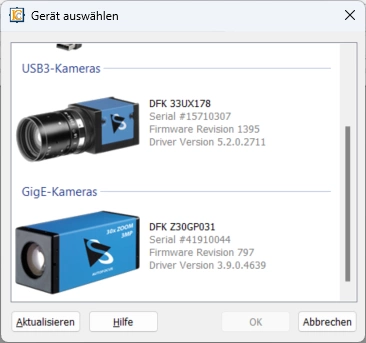
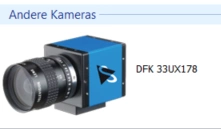 In the camera selection dialog, key information such as the camera serial number, firmware version, and driver version, normally displayed by IC Capture 2.5, will be missing. In addition, important camera properties such as trigger and tone mapping may not be available.
To install the correct driver manually, open the Windows Device Manager. The easiest way to do this is to right-click the Windows Start button and select Device Manager. The window will look similar to this:
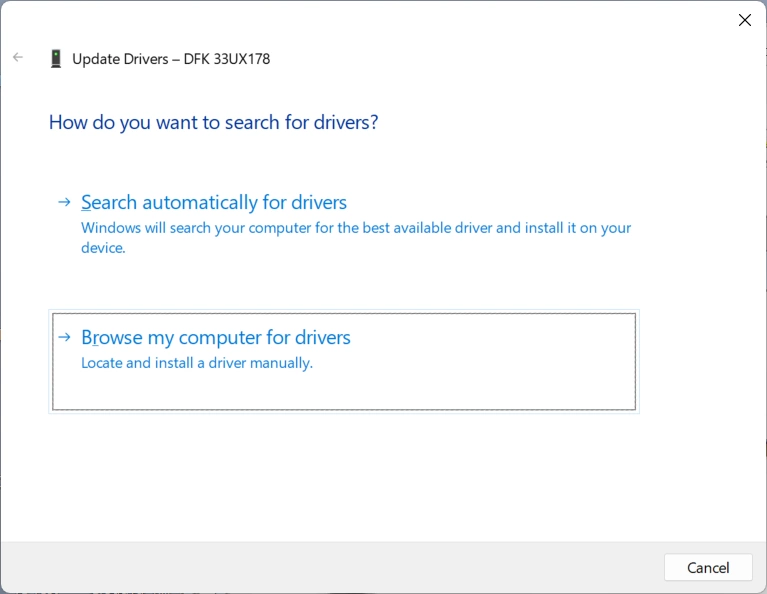
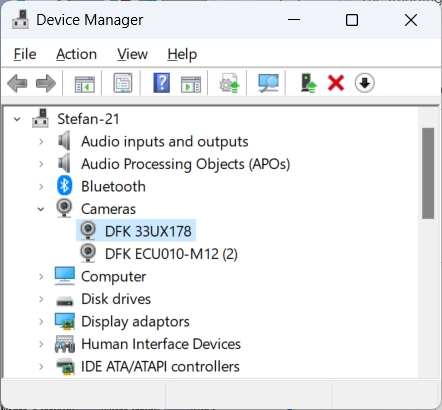 In this example, the DFK 33UX178 is listed under Cameras, which indicates that the wrong driver is in use. When the correct driver is installed, the camera should appear under Imaging devices. Right-click the camera and select "Update Drivers" from the context menu. The dialog below (see following image) will appear. Select "Browse my computer for drivers."
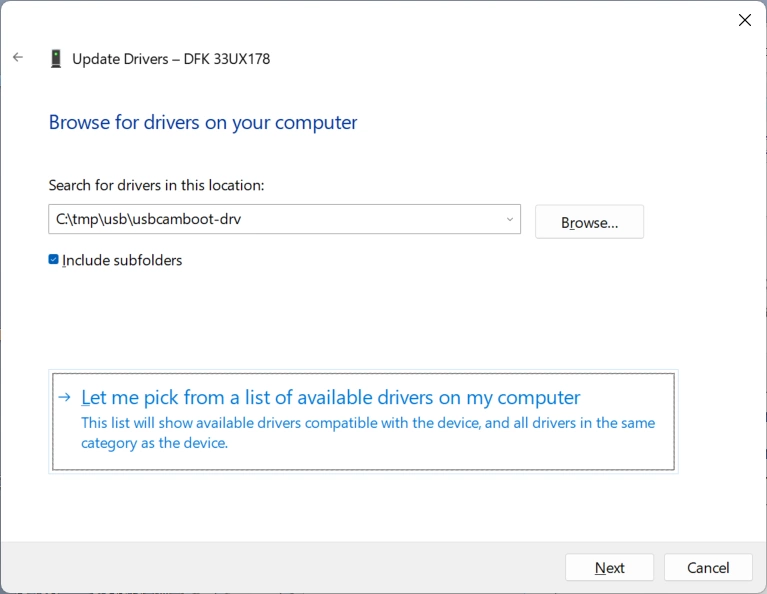
 The next screen will look like the following image. Then click "Let me pick from a list of available drivers on my computer."
 You should now see the following:
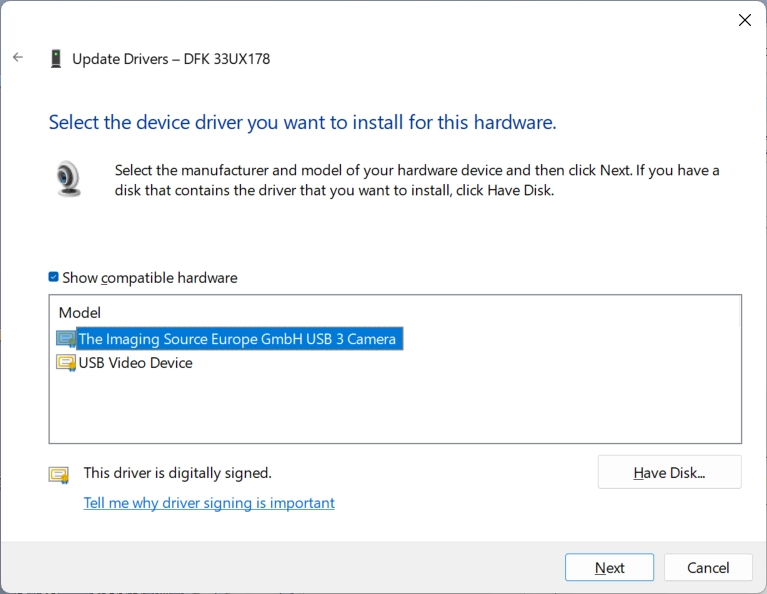 If the The Imaging Source driver is already installed on your system, it will appear in the list as shown above. If it does not appear, the driver has not yet been installed.
Select the correct driver and click "Next" to complete the installation:
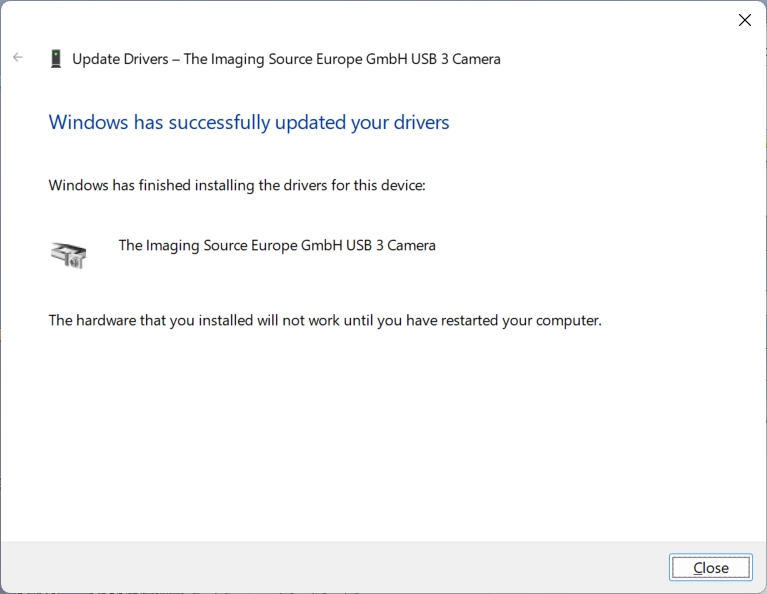 A message prompting you to restart your computer may appear if the camera was in use by another application during installation.
After the installation is complete, the camera will be listed under "Imaging devices:"
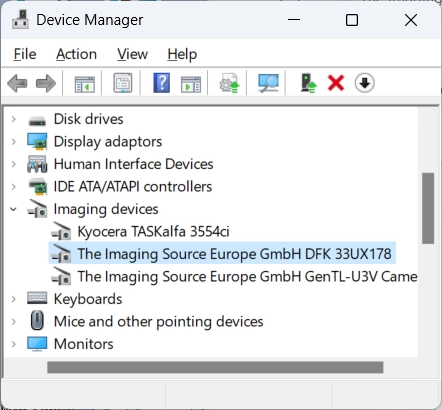 The camera will now also be displayed correctly in IC Capture:
 For further questions, please use our contact form.